📂
Context-Aware
Project aliases load automatically when you cd into a directory and unload when you leave. No manual switching.
Learn more
Like direnv, but for aliases. Define aliases per project, per toolchain, or globally — and load the right ones automatically.

brew install sassman/tap/amoxide sassman/tap/amoxide-tuicurl -fsSL https://github.com/sassman/amoxide-rs/releases/latest/download/amoxide-installer.sh | sh
curl -fsSL https://github.com/sassman/amoxide-rs/releases/latest/download/amoxide-tui-installer.sh | shpowershell -ExecutionPolicy Bypass -c "irm https://github.com/sassman/amoxide-rs/releases/latest/download/amoxide-installer.ps1 | iex"
powershell -ExecutionPolicy Bypass -c "irm https://github.com/sassman/amoxide-rs/releases/latest/download/amoxide-tui-installer.ps1 | iex"cargo binstall amoxide amoxide-tuicargo install amoxide amoxide-tui You know what a good alias system looks like — you've tried building one. A block in .zshrc, a few alias lines, maybe a Makefile. It works until the third project, or until a colleague asks why l runs something surprising on their machine.
The real problem is scope. Shell aliases are global by default. A shortcut that makes sense inside one project leaks into every terminal window. Cleaning it up means editing dotfiles, sourcing, checking. The alias you added for client A still fires in client B's directory six months later.
amoxide solves scope. Aliases can live in a project directory (.aliases file, auto-loaded on cd), in a named profile (activated explicitly with am use <name>), or globally. Each layer loads independently and unloads cleanly when it leaves scope. The TUI gives you a live map of what's active — no mental overhead, no guessing.
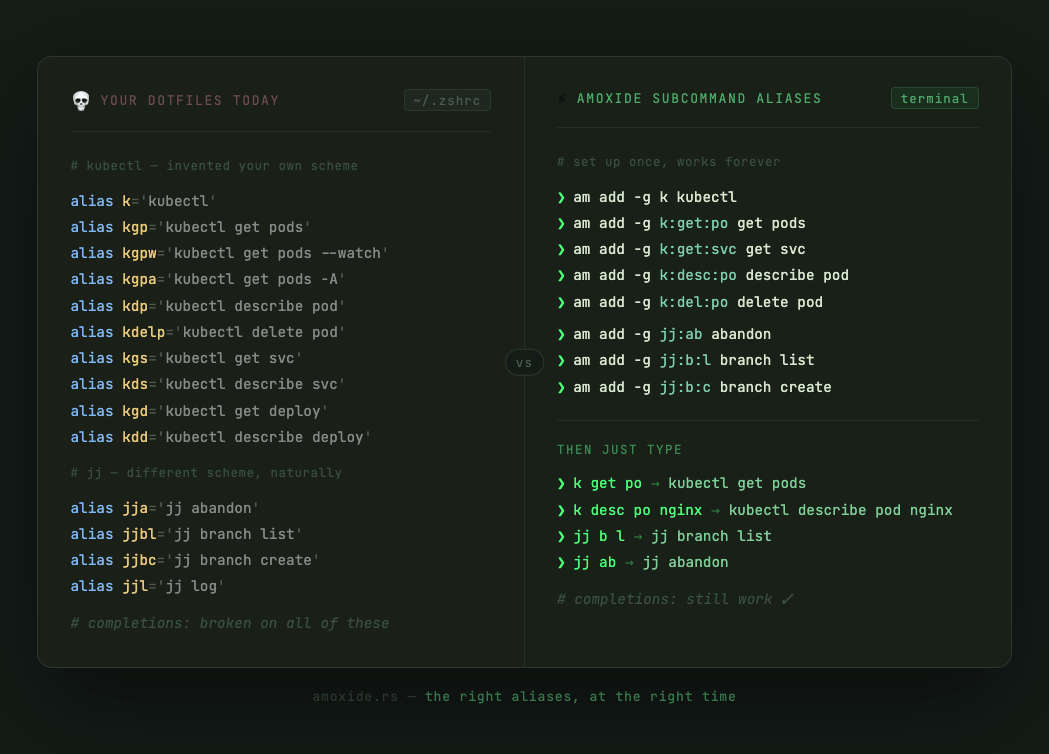
The subcommand alias system is where it gets interesting. Instead of a flat namespace full of cryptic prefixes, you define a routing scheme that makes sense to you: k get po expands to kubectl get pods, tab completion still works, and you chose the abbreviations.
You work on a Node service at work and a Rust side project in the evenings. The context switch between them is small — same editor, same terminal, same workflow instincts. But the moment you need to lint or run tests, you have to stop and remember which world you're in. Is it npm run lint or cargo clippy? Is it npm run dev or cargo run?
The usual answer is prefixed aliases: nl for node-lint, rl for rust-lint. It works, but it means your hands never build real muscle memory. You're always thinking one step ahead — "which prefix applies here?" — instead of just typing. That small friction compounds across a day.
With two amoxide profiles you give the same short name to each task in both contexts. l is always lint. t is always test. b is always build. r is always run. After a few days it stops feeling like a tool and starts feeling like a habit. The profile switch — am use node or am use rust — is the one decision you make at the start of a session.
| Alias | Node profile | Rust profile |
|---|---|---|
l | npm run lint | cargo clippy --locked --all-targets -- -D warnings |
t | npm test | cargo test |
b | npm run build | cargo build --release |
r | npm run dev | cargo run |
All profiles live in ~/.config/amoxide/profiles.toml — plain TOML, versionable alongside your dotfiles.
❯ am profile add node
❯ am add -p node l "npm run lint"
❯ am add -p node t "npm test"
❯ am add -p node b "npm run build"
❯ am add -p node r "npm run dev"

❯ am profile add rust
❯ am add -p rust l "cargo clippy --locked --all-targets -- -D warnings"
❯ am add -p rust t "cargo test"
❯ am add -p rust b "cargo build --release"
❯ am add -p rust r "cargo run"
❯ am use node
am: profile node activated — 4 loaded: l, b, r, t
❯ l      # npm run lint
❯ t      # npm test

❯ am use rust
am: profile rust activated — 4 loaded: l, b, r, t
❯ l      # cargo clippy --locked --all-targets -- -D warnings
❯ t      # cargo test
Your team's repo has a Justfile with 30-odd recipes: CI checks, integration test runs, database migrations, staging deployments. New joiners don't know just exists. Veterans forget the recipe they haven't typed in three weeks. The command to run integration tests is cargo test --features integration -- --test-threads 1 and lives only in the CI config.
Everyone has their own shortcuts. Some run make, some run just, some copy-paste from Slack. The result is a team that's technically using the same codebase but working with completely different muscle memory. New people spend their first week asking "how do I run the tests?"
A .aliases file committed to the repo root fixes this for everyone. When a developer cds into the project, amoxide loads the file automatically. am ls shows every shortcut available — no asking, no guessing. When a command changes, one commit updates it for the whole team.
The .aliases file uses the same TOML format as profiles. Teams can also add subcommand aliases for complex invocations that would otherwise live only in someone's head.
# in the project root
❯ am add -l ti     "cargo test --features integration -- --test-threads 1"
❯ am add -l ci     "just ci-check"
❯ am add -l db     "just db-migrate --env staging"
❯ am add -l deploy "just deploy --target production"

# commit it
❯ git add .aliases && git commit -m "add project aliases"
❯ cd ~/work/myproject
am: loaded .aliases
  ci     → just ci-check
  db     → just db-migrate --env staging
  deploy → just deploy --target production
  ti     → cargo test --features integration -- --test-threads 1

❯ am ls
📁 project (.aliases)
  ├─ ci     → just ci-check
  ├─ db     → just db-migrate --env staging
  ├─ deploy → just deploy --target production
  ╰─ ti     → cargo test --features integration ...

❯ ti      # cargo test --features integration -- --test-threads 1
Oh-my-zsh ships over 120 kubectl aliases. kgp is get pods. kdp is describe pod. kgpw is get pods --watch. The scheme was designed by someone else, uses abbreviations you didn't choose, and can't be changed without forking the plugin. You either take all 120 or you take none.
And the aliases you actually need aren't in there. kubectl logs deployment/api --since=10m --tail=100 — the one you run every incident — has no alias. So you type it in full, or you add klogs-api to your .zshrc and forget it exists three weeks later, buried next to the other one-offs.
amoxide subcommand aliases let you define the scheme yourself. A base alias routes to a command, and short subcommand sequences expand to whatever flags make sense to you. k get po becomes kubectl get pods. k logs api becomes the exact invocation you always reach for. The whole thing lives in one place, is visible with am ls, and is yours to adjust without touching anyone else's config.
Subcommand aliases can live in a global profile (always available) or a project .aliases file (only active in that repo). Cluster-specific aliases belong in the project; daily kubectl verbs belong globally.
# base alias — k routes to kubectl
❯ am add -g k kubectl

# subcommand routing
❯ am add -g k:get:po   "get pods"
❯ am add -g k:get:svc  "get svc"
❯ am add -g k:desc:po  "describe pod"
❯ am add -g k:logs:api "logs deployment/api --since=10m --tail=100"
❯ am add -g k:rr      "rollout restart deployment"
❯ k get po
NAME                   READY   STATUS    RESTARTS
api-7d4f9b8c6-xk2pm    1/1     Running   0

❯ k logs api
2026-04-15T09:12:44Z INFO  server started on :8080

❯ k rr api
deployment.apps/api restarted

# completions still work — press Tab after k get
You work with three clients. Each has a different cloud provider, a different staging URL, a different deployment pipeline, a different VPN. Your .zshrc has three commented-out blocks you toggle by hand when you switch context. The wrong deploy alias once pointed at the wrong staging environment for ten minutes before you noticed.
The deeper problem is that global aliases don't belong to anyone. They accumulate — old client shortcuts sitting next to current ones, some broken, some shadowing each other. Every few months you do a cleanup that takes an afternoon and still doesn't feel finished.
With amoxide, each client lives in its own directory. cd client-a/ loads their aliases automatically — their AWS shortcut, their deploy command, their staging URL opener. cd client-b/ unloads all of it and loads theirs. Nothing leaks between contexts. The .aliases file for each client can live in the project repo — versioned, auditable, shared with anyone else who works there.
Project aliases require a one-time am trust per repository — amoxide won't auto-load a file it hasn't seen before.
# added once, committed to the repo
❯ am add -l deploy  "./scripts/deploy.sh --env staging"
❯ am add -l logs    "ssh app@client-a.internal journalctl -u api -f"
❯ am add -l stage   "open https://staging.client-a.internal"
❯ am add -l tf:plan "terraform plan -var-file=client-a.tfvars"
❯ cd ~/clients/client-a
am: loaded .aliases
  deploy  → ./scripts/deploy.sh --env staging
  logs    → ssh app@client-a.internal journalctl -u api -f
  stage   → open https://staging.client-a.internal
  tf:plan → terraform plan -var-file=client-a.tfvars
❯ deploy

❯ cd ~/clients/client-b
am: loaded .aliases
  infra:plan → terraform -chdir=infra plan
  preview    → open https://preview.client-b.internal
  ship       → ./scripts/ship.sh
❯ preview

# no stale aliases. no cross-contamination.
Eight years of development, 200-odd aliases. gcm might be git commit -m or git checkout master depending on which year you wrote it. Some refer to projects you no longer work on. Some are broken because the tool they wrapped was renamed. alias | grep git returns 40 lines and you still can't find the one you want.
The only way to discover an alias is to remember you made it. The only way to clean them up is to scroll through a file you haven't fully read in years. You know this needs doing. You keep putting it off.
amoxide turns this into a tractable afternoon. Move aliases into named profiles — work, personal, git, rust, ops — each a plain TOML section you can read, annotate, and understand. am ls shows exactly what's active right now. Nothing loads unless you, or a project directory, asked for it. The 200-alias pile becomes five profiles you actually trust.
Profiles can be activated together: am use git work layers both, with later profiles taking precedence on name conflicts.
# create organised profiles
❯ am profile add git
❯ am add -p git gs      "git status --short"
❯ am add -p git gp      "git push"
❯ am add -p git gl      "git log --oneline --graph -20"
❯ am add -p git gm      "git commit -m"

❯ am profile add work
❯ am add -p work vpn    "sudo openconnect vpn.company.com"
❯ am add -p work jira   "open https://company.atlassian.net"
❯ am add -p work standup "open https://meet.google.com/xyz"
❯ am use git work
am: profile git activated — 4 loaded: gl, gm, gp, gs
am: profile work activated — 3 loaded: jira, standup, vpn

❯ am ls
├─● git (active)
│   ├─ gl     → git log --oneline --graph -20
│   ├─ gm     → git commit -m
│   ├─ gp     → git push
│   ╰─ gs     → git status --short
│
╰─● work (active)
    ├─ jira    → open https://company.atlassian.net
    ├─ standup → open https://meet.google.com/xyz
    ╰─ vpn     → sudo openconnect vpn.company.com
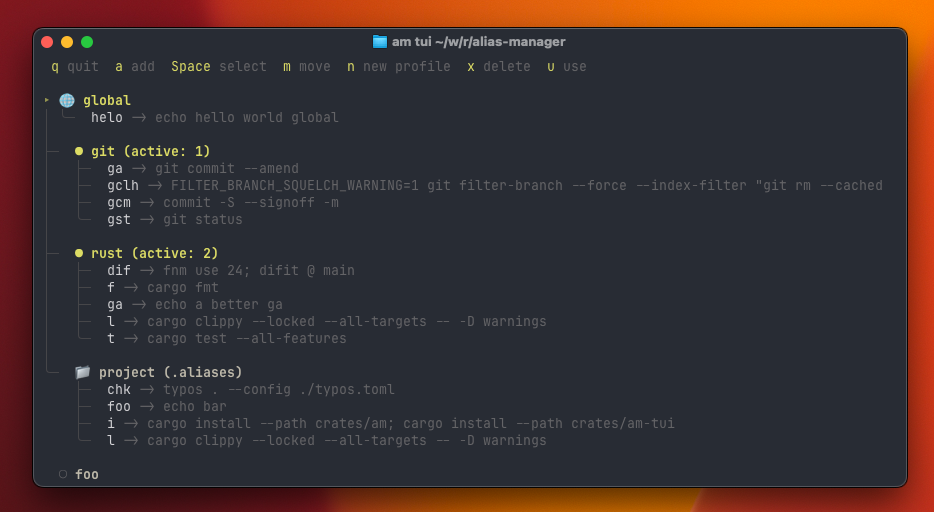
am tui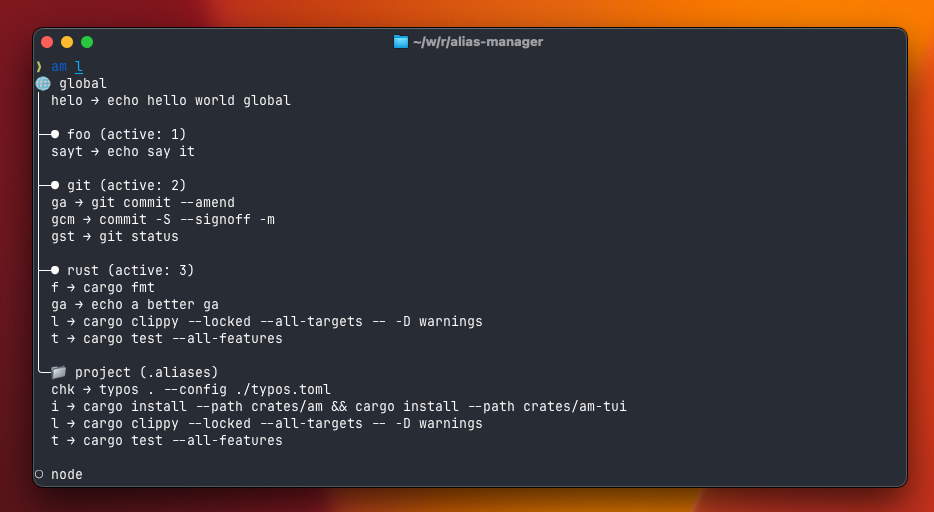
am ls